

A supplier sends you a catalogue. You need the product names, prices and delivery terms for a short brief. The information is there, but it is spread across paragraphs and a table.
Before asking AI to summarise it, extract the content into files you can check. Docling can turn a PDF into Markdown and separate CSV tables. You can review those files, correct any mistakes, and give your AI a clearer source for the brief.
Here is the complete process using a small example you can download and run.
What you will make
You will start with a one-page supplier catalogue and produce three useful outputs:
- A Markdown file containing the extracted text and table.
- A CSV file you can open in a spreadsheet to check the product rows.
- A supplier brief prepared from the reviewed information, with missing details clearly marked.
The order is simple: PDF → extracted files → review → brief. The review matters because a well-written summary can still contain a price attached to the wrong product.
The example: three products and one missing price
The catalogue below was created for this tutorial. Northstar Office Supplies is a fictional supplier, and the products and terms are sample data.
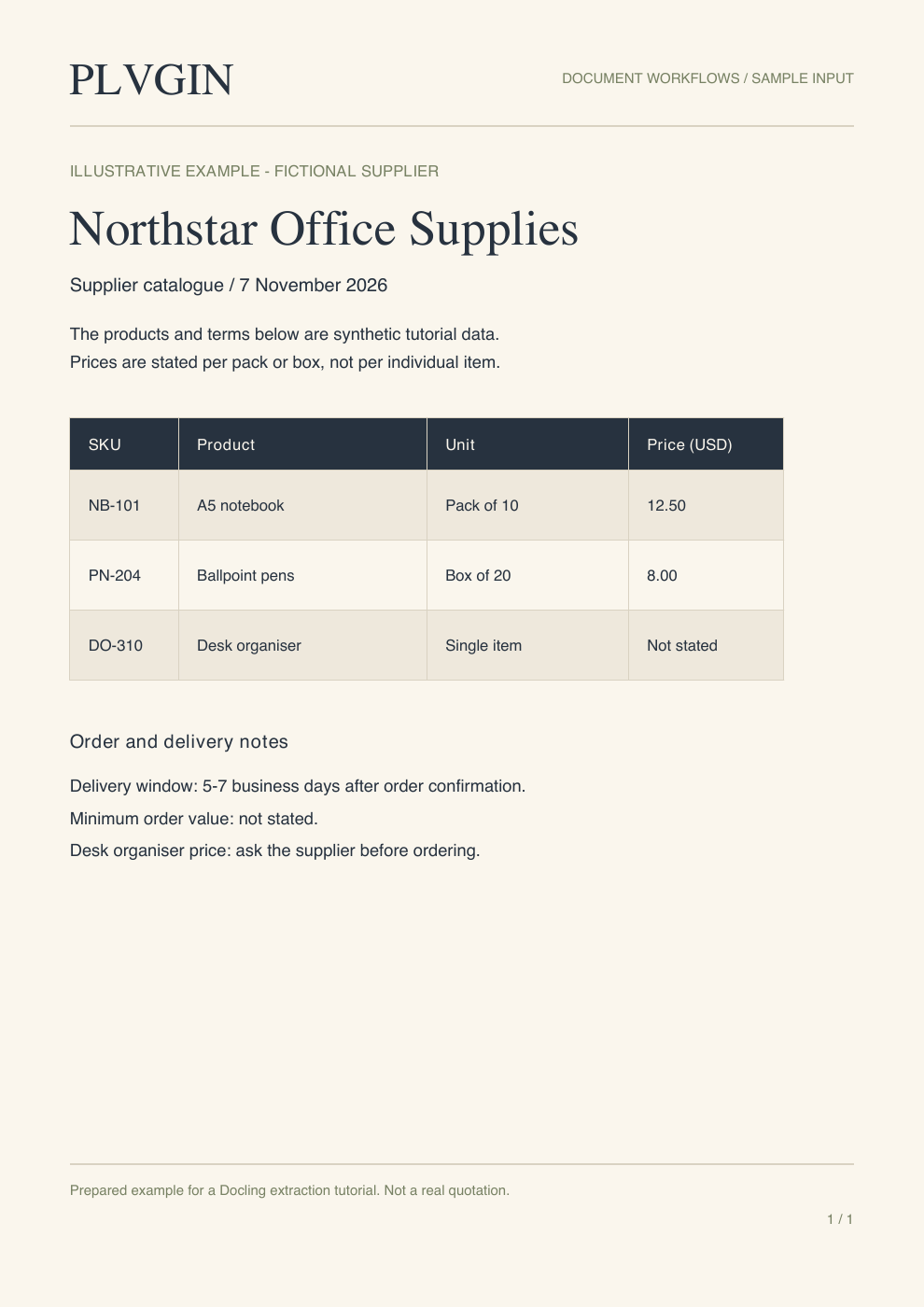
Sample input: a digitally created PDF with selectable text. This is not a scanned document or a real supplier quotation.
In the local test, Docling produced one table containing the three product rows. Each row was checked against the source PDF, including its unit and price. The delivery notes and missing minimum-order value were also present in the Markdown export.
That establishes what happened with this example. A larger catalogue, a scan or a table with merged cells needs its own check.
1. Get the sample files
Download the Docling starter kit, then extract it into a new folder. The kit includes the sample PDF, the extraction script, installation requirements, a brief-writing prompt and the checked example outputs.
You can also open the sample PDF and extraction script separately. The steps below explain the setup, so the download is a convenience rather than a hidden prerequisite.
This example was tested with Python 3.12.13 and Docling 2.148.0. That Docling release requires Python 3.10 or later, below version 4. Release package requirements.
2. Install Docling in a separate environment
Open a terminal in the extracted starter folder. On macOS or Linux, run:
python3 -m venv .venv
source .venv/bin/activate
python -m pip install -r requirements.txt
On Windows, create the environment with py -m venv .venv, then activate it with .venv\Scripts\activate.bat in Command Prompt or .venv\Scripts\Activate.ps1 in PowerShell. Run the same python -m pip install -r requirements.txt command afterward.
The requirements file contains:
docling==2.148.0
pandas
Docling's code is MIT-licensed. This extraction uses local processing and does not need a paid text-model API. Installing the packages and downloading the layout and table models still require internet access the first time. Docling project, model downloads and local processing.
Checkpoint: confirm the environment is active and installation completes before running the script. A first run may take longer while model files are downloaded.
3. Extract the catalogue
With supplier-catalog.pdf beside extract_catalog.py, run:
python extract_catalog.py
The script creates an extracted folder:
extracted/
  supplier-catalog.md
  supplier-table-1.csv
  conversion-receipt.json
The Markdown contains the document's text and a table representation. The CSV contains the detected table as rows and columns. The receipt records the version, conversion status and number of detected tables.
For this selectable-text PDF, the script disables OCR and keeps table extraction enabled. Remote processing services are disabled explicitly. A scanned PDF needs an OCR-enabled configuration; simply turning OCR off is not appropriate for every document. Versioned PDF conversion example.
To use another selectable-text catalogue, supply its path:
python extract_catalog.py --input your-catalog.pdf --output your-extract
If no table is detected, a CSV will not appear. Check the input, conversion receipt and detected content before continuing.
See the conversion and export code
The downloadable script adds file checks, command-line options and a receipt around this conversion:
from pathlib import Path
from docling.datamodel.base_models import InputFormat
from docling.datamodel.pipeline_options import PdfPipelineOptions
from docling.datamodel.accelerator_options import AcceleratorOptions, AcceleratorDevice
from docling.document_converter import DocumentConverter, PdfFormatOption

options = PdfPipelineOptions(
    do_ocr=False,
    do_table_structure=True,
    enable_remote_services=False,
    accelerator_options=AcceleratorOptions(
        device=AcceleratorDevice.CPU, num_threads=4
    ),
)
converter = DocumentConverter(
    format_options={InputFormat.PDF: PdfFormatOption(pipeline_options=options)}
)
doc = converter.convert("supplier-catalog.pdf").document

out = Path("extracted")
out.mkdir(exist_ok=True)
(out / "supplier-catalog.md").write_text(
    doc.export_to_markdown(), encoding="utf-8"
)
for number, table in enumerate(doc.tables, start=1):
    table.export_to_dataframe(doc=doc).to_csv(
        out / f"supplier-table-{number}.csv", index=False
    )
The Markdown export follows the official quickstart. Table export uses the project's CSV example.
4. Check the rows before writing the brief
Open the PDF beside the CSV. These are the rows produced by the sample conversion:
| SKU | Product | Unit | Price (USD) |
|---|---|---|---|
| NB-101 | A5 notebook | Pack of 10 | 12.50 |
| PN-204 | Ballpoint pens | Box of 20 | 8.00 |
| DO-310 | Desk organiser | Single item | Not stated |
The unit is part of the price. The notebook price is for a pack of ten, and the pen price is for a box of twenty. Neither should become a per-item price in the brief.
The desk organiser's missing price is useful information too. Keep it as “not stated” so the buyer knows what to ask. Filling the gap with a plausible amount would make the brief less reliable.
Check the surrounding text as well. The sample says delivery is five to seven business days after order confirmation. Preserve that condition rather than turning it into an unconditional delivery promise.
5. Write a brief from the reviewed information
Once the extracted files match the PDF, give the relevant Markdown and CSV to the text model you already use. Ask for the exact information you need:
Create a short supplier brief using only the reviewed files provided.

Include product identifiers, prices with currency and unit,
delivery terms, and missing details to confirm with the supplier.

Write "not stated" when information is absent. Do not invent
prices, assume stock availability or calculate per-item costs.
Attach a source filename and a short supporting excerpt to facts.
For this example, the brief should preserve three points: two listed prices with their pack sizes, the delivery condition, and the questions about the organiser price and minimum order.
The summarising model is a separate choice. Its charges and data handling are separate from local extraction. Check the brief against the reviewed files before using it in a purchasing decision.
When this workflow is useful
Use it when you repeatedly need information from catalogues, reports or other document tables in a format you can inspect. The CSV is useful for a spreadsheet handoff; the Markdown gives a text model the surrounding explanation.
For a single short document, manual reading may be quicker than setting up a new environment. This approach becomes more useful when the same extraction and review steps recur.
Start with the included sample, compare all three rows, then repeat the process on one of your own documents. Keep the original beside the output until the handoff is clear.
Sources and example checked 7 November 2026. The local test used one synthetic, digitally created PDF. Scanned files and wider catalogue accuracy were not evaluated.